
Documents & files
Every document in its place, attached to the work
Client document management software should keep the paperwork with the work it proves. Need Navigator gives every file a type, a folder, and a home on the client's record (or on the need, visit, or task it belongs to) and turns the morning scanner stack into filed records a couple of clicks at a time.
What the documents module does
Typed files, not a junk drawer
Upload one file or a batch; each gets a document type from your agency's own list, and types carry their own custom fields for the details that matter. The utility bill is a utility bill, not scan_0412.pdf.
Folders your teams control
Organize files into folders with team-based visibility: open to everyone, limited to the client's program, or restricted to selected teams. Drag files between folders as things change.
Attached to the work itself
A file can live on a client, a need, a visit, a task, or an organization. The paperwork that justifies an assistance request sits on the request itself, not three folders away.
Organized from day one
When a client enrolls in a program, the program's default folder set is created automatically. Every enrollee's record starts out organized the same way.
Many files, one packet
Select PDFs, images, and Office documents and merge them into a single PDF: a complete application packet as one attachment instead of five.
A scanner inbox for the daily stack
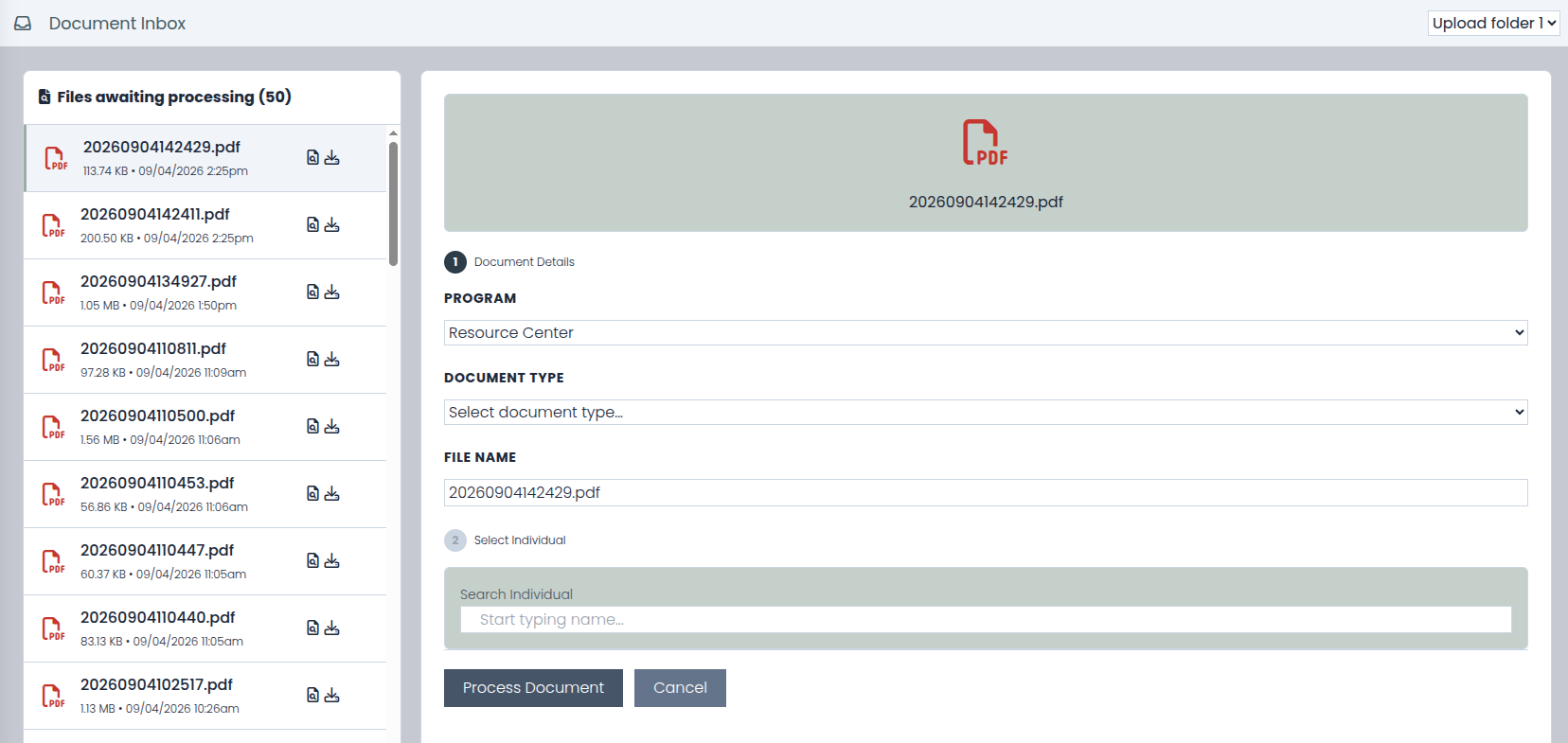
Optional per agency: a scanner or SFTP (secure file transfer) drop folder feeds a triage screen. Staff preview each file, find the right client, visit, or need, and file it with a type and folder in a couple of clicks.
Deleted is not destroyed
Deleting a client file is reversible. Files are soft-deleted and can be recovered, so one wrong click never destroys a client's only copy of a document.
Access checks that travel with the file
Team-based permission levels apply to files and folders, and downloads of client files pass a program-security check. Visibility rules are enforced, not suggested.
Questions agencies ask
Who can see a client's files?
You decide, folder by folder and file by file. Visibility can be open to everyone at the agency, limited to staff in the client's program, or restricted to selected teams. Client-file downloads pass a program-security check on top of that. Role-based permissions govern who can manage documents in the first place.
What does the Document Inbox need to be set up?
A way to land scans in a drop folder: a scanner that saves to one, or an SFTP (secure file transfer) connection. The inbox is an optional module, set up and tailored per agency. Once it is on, incoming files queue on a triage screen where staff preview each one and file it to the right client, visit, or need with a type and folder in a couple of clicks.
What happens when someone deletes a file by mistake?
Deleting a client file is a soft delete: the file leaves the folder, but it is not destroyed, and it can be recovered. A misclick does not cost a client the only copy of their lease.
Can a file attach to something besides the client?
Yes. Files attach to a client, a need, a visit, a task, or an organization. That means an eviction notice can live on the assistance request it supports, and a sign-in sheet on the visit it documents. When you open that record later, its paperwork is already there.
What kinds of files can merge into one PDF?
PDFs, images, and Office documents. Select the files on the client's record and they combine into a single PDF. That is how agencies assemble a complete application packet as one attachment instead of a loose stack of files.
Watch a stack become a filed record
Bring your messiest intake packet to the demo. We will walk it from the scanner inbox to the client record, then merge it into one clean PDF.