
Casework: visits, notes, goals, tasks & calendar
The whole day's casework, in one record
Case notes software for social services works best when the note isn't an island. In Need Navigator, visits, notes, goal plans, and tasks all hang off the same client record, with live threads on its needs and referrals and one shared calendar over all of it, so what happened, who saw it, and what comes next live in one place.
Notes that reach the right people, and only them
Visibility, set per note
Each note is visible to everyone, one program, or selected teams. Your call, note by note. Address it to specific recipients, and read tracking shows who has actually seen it.
A grace period for second thoughts
Notes deliver after a personal undo window (typically 60 seconds to 10 minutes, and each person picks their own), so a note sent to the wrong place can be pulled back before anyone sees it.
Pull in the right colleague
@mention a colleague in a rich-text note to notify them directly. Notes carry reply chains, pinning, and file attachments, so the follow-up conversation stays attached to the note that started it.
Live threads where decisions happen
A live chat thread attaches to any need, referral, or program. Messages appear for other participants in real time, typing indicators included. The conversation about the request lives on the request.
Visits, logged the way they actually happen
Group visits, multiple dates, one entry
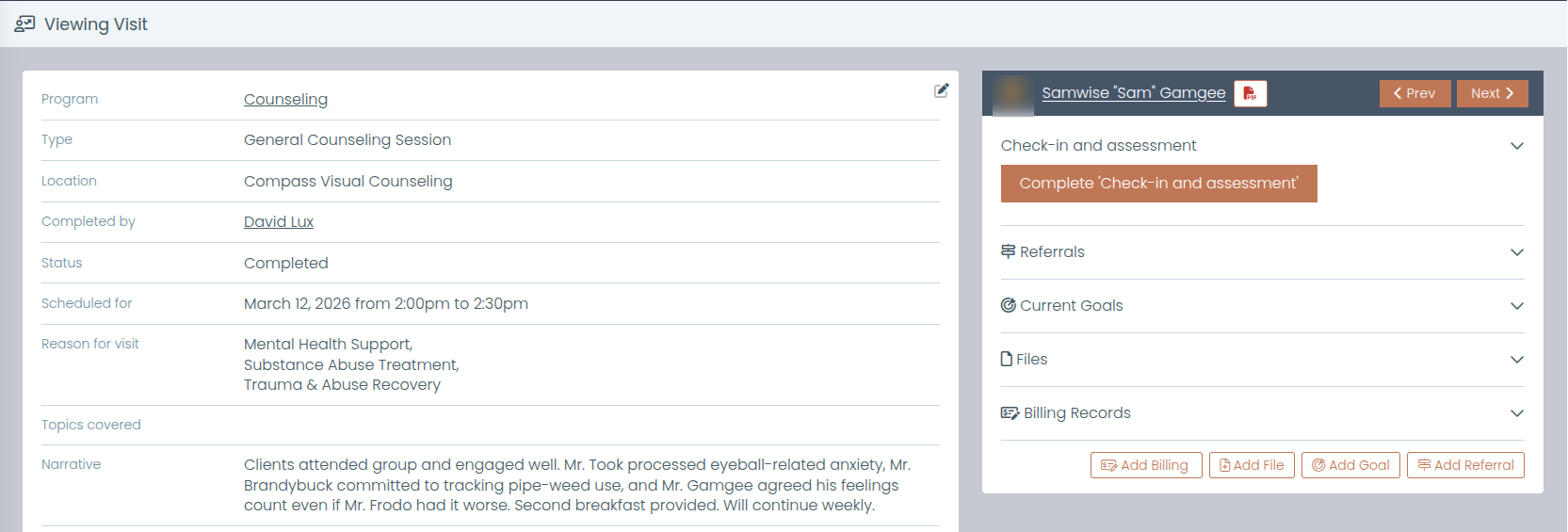
One visit can include several clients, and a single entry can be recorded across multiple dates at once: a recurring group session gets logged once, not session by session.
Your reasons, your topics, your forms
Visit reasons, topics, and types are agency-configurable, and a reason can attach a form that gets filled per client, per visit. Start and end times are captured, so the record shows real duration.
Manager review, built in
Flag any visit reason as requiring review. The caseworker's manager gets a review panel (Unreviewed, Reviewed, Completed, Staff Action Needed) with review notes only the manager can edit.
Less re-typing, fewer dropped steps
Copy a visit for the next appointment, or edit inline from the list. With an Automation on the reason, recording a visit can enroll an un-enrolled client in the program, and logging a visit from a task marks the task complete.
Goal plans with steps, dates, and an end
Start from a template
Build goal templates once (ordered steps with default durations), and every new goal pre-populates its steps from the template. The plan starts complete instead of blank.
Steps that schedule themselves
Steps run sequentially, each starting when the prior one ends, or in parallel where the work allows. Every step carries start and due dates and records who completed it, and when.
Progress that rolls up
When the last step is done, the goal completes on its own. Lists and client profiles show progress at a glance ("3 of 5 steps"), so nobody has to open the plan to know where it stands.
See the plan on a timeline
A Gantt-style timeline lays the steps out across their dates, so a caseworker and a client can look at the same picture of what happens next, and what has to finish first.
The to-do list and the calendar, wired in
Tasks & task lists
Tasks carry a priority, assignee, team, and due date, with threaded comments, attachments, and @mentions. Link a task to a client, need, or visit, or create one straight from a note. Saved filtered views keep badge counts in the sidebar, tasks can optionally stamp a GPS (Global Positioning System) location for field programs, and everything exports to Excel.
One shared calendar
Overlay visits, tasks, needs, referrals, goals, reservations, and events on one calendar; filter by shelter, room, resource, user, or client, and save your default view. As a convenience, it generates "Meet now" and pre-filled scheduling links for Microsoft Teams or Google Calendar (Zoom opens its scheduling page). This is link generation, not calendar sync.
Questions caseworkers ask
Who can see a case note?
Whoever you say. Every note carries its own visibility (everyone, a program, or selected teams), and you can address it to specific recipients, with read tracking that shows who has actually seen it. Sensitive notes stay inside the circle that needs them.
What if I send a note to the wrong place?
Notes deliver after a personal grace period you choose, typically 60 seconds to 10 minutes. Until the timer runs out, the note has not been delivered, and you can undo it before anyone sees it. A mis-click gets a second chance instead of an apology.
Can supervisors sign off on visits?
Yes. Flag any visit reason as requiring review, and visits logged under it queue in the manager's review panel with four statuses: Unreviewed, Reviewed, Completed, and Staff Action Needed. Review notes on the panel are editable only by the manager, so the sign-off record stays theirs.
How do group visits work?
One visit can include multiple clients, and a single entry can be recorded across multiple dates at once. A month of weekly group sessions does not mean re-typing the same visit four times. If the visit reason has an attached form, it is filled out per client, per visit, so each person's record stays individually complete.
Does the calendar sync with Teams, Google Calendar, or Zoom?
No. It generates meeting links as a convenience, and we say so plainly. You get a "Meet now" link plus pre-filled scheduling links for Microsoft Teams or Google Calendar; Zoom opens its scheduling page without prefill, and each agency picks one provider. This is link generation, not calendar sync: Need Navigator does not read from or write to your external calendars.
Walk a real day through it
Bring one workflow to the demo: a home visit, the note that follows, the goal step it advances. We will log it end to end, manager sign-off included.